Installation
System Requirements
Prior to any installation, please check with your Tetra4D software provider the requirements and recommendations to run the Tetra4D “Automate”.
Note that Tetra4D Automate requires templates created with Tetra4D enrich to operate.
Windows
• 1.5GHz or faster processor
• 1GB of RAM
• 350MB of available hard-disk space
• 1024x768 (minimum) screen resolution
• Video hardware acceleration (optional)
• Supported Operating Systems (64-bit only)
• Windows Workstations:
o Windows 10
o Windows 11
• Windows Server:
o Windows Server 2016
o Windows Server 2019
o Windows Server 2022
Note: Windows Server 2012 / R2 is no longer officially supported by Microsoft and is not recommended for new installations
Installation of Tetra4D Automate
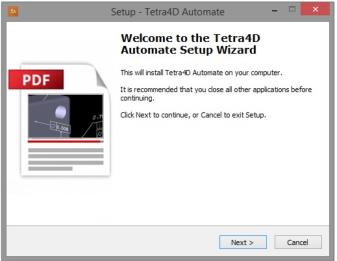
1. Download and run the “Tetra4D Automate” installer. The installer should have been emailed to you along with your license/serial number. You can also find it in your Customer Portal
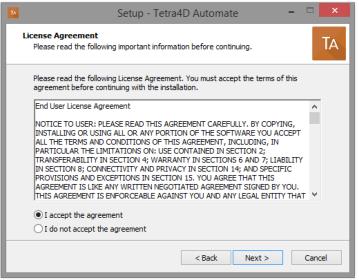
2. Read and accept the End User License Agreement
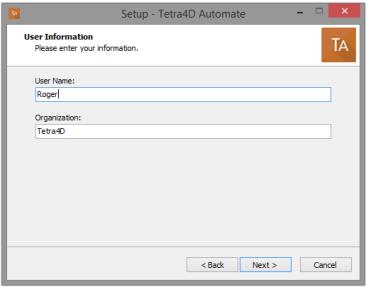
3. Enter your user information (optional), then click Next to continue:
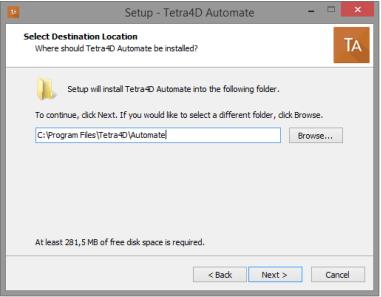
4. Select the installation folder, then click Next to continue: Remark:
The installation process will create the main folder and a set of sub-folders, including a sample data set that can be used to for deployment.
5. Review the installation information and click Install:
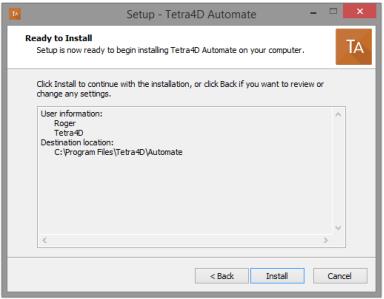
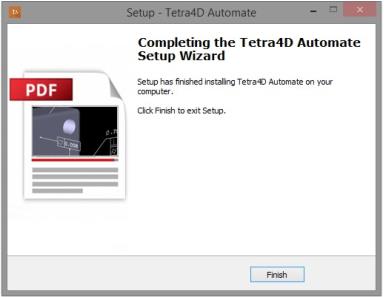
6. At the end of the installation process, click Finish.
Installation folder structure
The installer creates the following folder structure within the main installation directory:
• Install: Installation-related information
• Resource: Program resources
• Samples: Sample dataset (folders, CAD data, Conversion settings, Command line examples, etc.)
Samples folder overview
For a detailed explanation of the contents and usage of the Samples folder, please refer to Appendix 1.
Activation and Registration
The Tetra4D Automate license is based on two elements that will be provided by the Tetra4D support:
• A serial number,
• A “Module” file that defines the available CAD readers and optional writers. Remark:
The module file is tied to the serial number.
Make it sure that the Module file you are using corresponds to the Serial number. To confirm, open the Module file and check the line “TetraLicence”.
The Tetra4D Automate licensing system makes it possible to activate your license on-line if the computer is connected to the Internet, or off-line if the computer is not connected to the Internet.
License Activation (on-line)
The procedure to activate your license is described below. To access to the activation dialog:
• Open a Windows Explorer
• Open the folder where the Tetra4D Automate has been installed
• Run startLicenseManager.bat
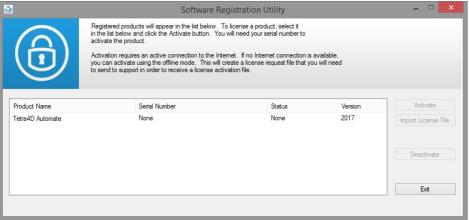
This batch program starts the Registration utility program
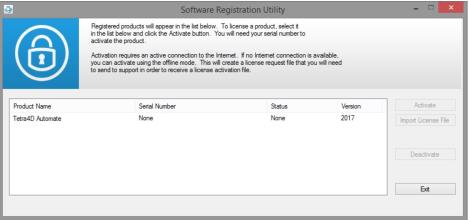
Notes:
• The Tetra4D License Manager tool lists:
o The installed Tetra4D products
o The status of each product (Trial mode, registered…)
o The version of each product
• Select the Tetra4D Automate product
• Click on Activate
• Input your serial number
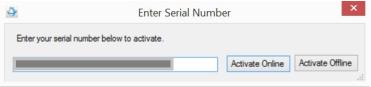
• Click on Activate Offline
• Click Exit to close the window.
• Copy the “Module” file that has been delivered along your serial number into
C:\ProgramData\TechSoft3D\License
License Activation (off-line)
Tetra4D Automate enables an off-line activation of the license. The procedure to activate your license is described below.
To access to the activation dialog:
• Open a Windows Explorer
• Open the folder where the Tetra4D Automate has been installed
• Run startLicenseManager.bat
This batch program starts the Registration utility program
Notes:
• The Tetra4D License Manager tool lists:
o The installed Tetra4D products
o The status of each product (Trial mode, registered…)
o The version of each product
• Select the Tetra4D Automate product
• Click on Activate
• Input your serial number
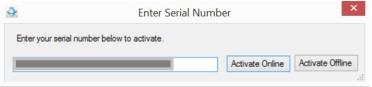
• Click on Activate Offline
• Save the Offline_activation_ XXXXXXX-XXXXXXXXXX-XXXXXXX-XXXXX _macAddress.req file generated by the license manager
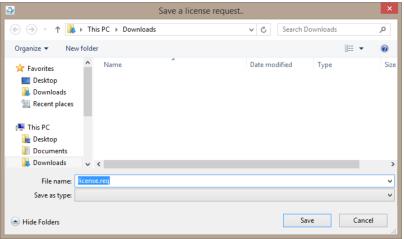
• Send the Offline_activation_ XXXXXXX-XXXXXXXXXX-XXXXXXX-XXXXX _macAddress.req file to support@tetra4d.com
• Click Exit to close the window.
•
• Our support staff will send 2 license files corresponding to the computer from which you issued the activation request
Remark:
• The files you will receive will be named as shown below:
• XXXXXXX-XXXXXXXXXX-XXXXXXX-XXXXX _macAddress.license
• TetraAutomate2017Test.modules
• Copy the 2 delivered files into C:\ProgramData\TechSoft3D\License
• Click Exit to close the window.
•